

Uptime Kuma is an open-source service monitoring tool you run on your own server. It checks your sites, APIs and background jobs on a schedule, alerts you through Telegram, Discord, email and dozens of other channels when something breaks, and can publish a public status page. Free tiers of hosted tools like UptimeRobot cap check intervals and monitor counts. With Uptime Kuma, the only cap is your server.
Here is how I set up Uptime Kuma 2, which monitor types I actually use, how I wire up alerts, and the hardening and backup steps I do right after installing it.
When Uptime Kuma is enough#
Uptime Kuma looks from the outside: does this URL answer, how fast, does the response contain what I expect? It can't see inside the app. For CPU, memory, queue depth or latency histograms you need a metrics stack like Prometheus and Grafana. For a small project or a handful of personal services, Uptime Kuma alone covers it. As things grow, the two work well together: metrics for the inside, Uptime Kuma for what users see.
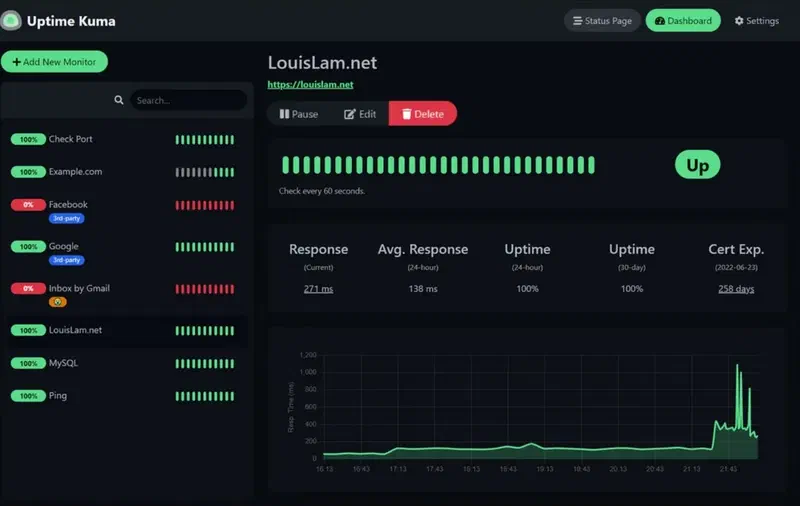
The screenshot in the project's README sums up the UI: monitors on the left, and for the selected one its response time, uptime percentages and days until the certificate expires.
Don't run it on the server it watches#
Decide where it lives before you install it. If Uptime Kuma runs on the same machine as the services it monitors and that machine goes down, the monitor goes down with it and nobody gets alerted. I run it on a separate small VPS. If that's not in the budget, a cheap box at a different provider, or even a mini PC at home, beats the same server.
The whole setup from this post: Uptime Kuma runs HTTP checks from outside, the bot sends push requests itself, and alerts go to Telegram and to a webhook receiver.
Install with Docker Compose#
services:
  uptime-kuma:
    image: louislam/uptime-kuma:2
    restart: unless-stopped
    volumes:
      - ./data:/app/data
    ports:
      - "127.0.0.1:3001:3001"
    logging:
      driver: json-file
      options:
        max-size: "10m"
        max-file: "3"
The port is bound to 127.0.0.1 because outside traffic will come through a reverse proxy. The ./data folder holds all settings and history. The project doesn't support keeping it on network filesystems like NFS, so use a local disk.
On first start, the setup screen asks for a database. Uptime Kuma 2 offers SQLite, an embedded MariaDB, or an external MariaDB/MySQL. SQLite is fine for a few dozen monitors. With hundreds of monitors and long history, MariaDB holds up better.
If you're upgrading from 1.x, back up data first. The first 2.x start migrates the database to a new schema, and with a lot of history that can take a while.
Reverse proxy and WebSockets#
The UI uses Socket.IO (WebSockets) for live updates. If the page sticks at "Connecting..." behind a proxy, the WebSocket headers are missing almost every time. For nginx:
server {
    listen 443 ssl;
    http2 on;
    server_name status.example.com;

    # ssl_certificate and ssl_certificate_key go here

    location / {
        proxy_pass http://127.0.0.1:3001;
        proxy_http_version 1.1;
        proxy_set_header Upgrade $http_upgrade;
        proxy_set_header Connection "upgrade";
        proxy_set_header Host $host;
        proxy_set_header X-Forwarded-For $proxy_add_x_forwarded_for;
        proxy_set_header X-Forwarded-Proto $scheme;
    }
}
Traefik handles WebSockets without extra config; my Traefik v3 post shows the setup. Behind any proxy, turn on trusting the X-Forwarded-For header under Settings > Reverse Proxy, or every login will show the proxy's IP.
Monitor types worth using#
"Does it return 200" isn't enough. An app that lost its database connection can still return 200 with an error page. The types I use most:
- HTTP(s) - Keyword checks that the response contains a given string. For a homepage I pick a string from the footer. An empty page or an error template trips the monitor.
- HTTP(s) - Json Query evaluates an expression against the JSON response and compares the result with an expected value. If
/healthreturns{"status": "ok", "db": "ok"}, checking thedbfield tells you far more than the status code does. - Push works the other way around. Uptime Kuma gives you a URL and your job calls it on a schedule. If no call arrives in time, the monitor goes down. This is the right type for cron jobs, Telegram bots, trading bots and anything else that doesn't expose a port.
- Docker Container checks that a container is running.
- DNS and TCP Port check that a domain resolves to the right IP and that a port, say a database's, is open. An open port doesn't mean the database answers queries.
On HTTP monitors I also enable certificate expiry notifications. Let's Encrypt no longer sends expiry emails, so if auto-renewal silently breaks, this is how I find out.
Watching a background job with a push monitor#
To know a Python loop is still alive, call the push URL on every iteration:
import time

import httpx

PUSH_URL = "https://status.example.com/api/push/AbCdEf1234"


def run_once() -> None:
    ...  # the actual work


while True:
    started = time.monotonic()
    try:
        run_once()
        elapsed_ms = int((time.monotonic() - started) * 1000)
        httpx.get(PUSH_URL, params={"status": "up", "msg": "OK", "ping": elapsed_ms}, timeout=5)
    except Exception as exc:
        httpx.get(PUSH_URL, params={"status": "down", "msg": str(exc)[:200]}, timeout=5)
    time.sleep(60)
Set the monitor's heartbeat interval a bit longer than one loop, or a slow iteration raises a false alarm. If the process dies outright, the calls stop and the monitor goes down anyway, which catches the case no in-process error handling can.
Notifications#
Uptime Kuma supports more than 90 notification services. I use Telegram: create a bot with BotFather, take the token, send the bot a message to get your chat ID, and add it under Settings > Notifications. Mark it "Default enabled" and new monitors pick it up automatically.
To cut noise, I set "Retries" to 2 or 3 on each monitor. A single timeout doesn't page me; consecutive failures do.
The Webhook type sends alerts to your own systems. The default body is JSON with heartbeat, monitor and msg fields. With "Custom Body", you write the body as a Liquid template. The variables available are name, status, hostnameOrURL, msg, monitorJSON and heartbeatJSON:
{
  "text": "{{ status }} {{ name }}",
  "detail": "{{ msg }}",
  "url": "{{ hostnameOrURL }}"
}
Automatic remediation with a webhook#
A webhook can also trigger small automations, such as restarting a service when it goes down. I follow two rules when I do this: the receiver checks a shared secret, and it can only restart services from a fixed list. Building a command from incoming data is a remote code execution hole.
import hmac
import os
import subprocess

from fastapi import FastAPI, Header, HTTPException, Request

app = FastAPI()
SECRET = os.environ["KUMA_WEBHOOK_SECRET"]
RESTARTABLE = {"Public API": "my-api.service"}  # monitor name -> systemd unit


@app.post("/kuma")
async def kuma_hook(request: Request, x_kuma_secret: str = Header(default="")) -> dict[str, str]:
    if not hmac.compare_digest(x_kuma_secret, SECRET):
        raise HTTPException(status_code=401)

    payload = await request.json()
    heartbeat = payload.get("heartbeat") or {}
    monitor = payload.get("monitor") or {}

    # heartbeat.status: 0 = DOWN, 1 = UP
    if heartbeat.get("status") != 0:
        return {"action": "none"}

    unit = RESTARTABLE.get(monitor.get("name") or "")
    if unit is None:
        return {"action": "none"}

    subprocess.run(["sudo", "systemctl", "restart", unit], check=True, timeout=60)
    return {"action": f"restarted {unit}"}
In Uptime Kuma, put {"X-Kuma-Secret": "..."} in the webhook's "Additional Headers" field. In sudoers, the receiver's user is allowed that one systemctl restart command and nothing else. Keep in mind that an automatic restart hides a problem; it doesn't fix it. If the same service restarts three times a day, the bug is in the code or the resources. systemd's own Restart= and watchdog often make this receiver unnecessary; I cover both in my post on graceful shutdown and systemd.
Hardening after install#
A monitoring panel is a map of your infrastructure: which service runs where, internal addresses, sometimes headers with API keys. Right after setup I:
- Set a strong admin password and enable two-factor auth (TOTP) under Settings > Security.
- Expose the admin UI only through the reverse proxy, ideally behind a VPN or an IP allowlist. The status page can be public; the admin panel shouldn't be.
- Keep monitors that reveal internal hostnames or IPs off the public status page.
- Avoid mounting
/var/run/docker.sockdirectly for Docker Container monitors. Anything with that socket can control every container on the host. I add a Docker socket proxy that only allows read requests and register it as a TCP "Docker Host".
Status pages and maintenance windows#
Uptime Kuma can publish a public status page on something like status.example.com. I group monitors (Web, API, Bots) and only show what users care about. Before planned work I create a maintenance window: monitors don't alert during it, and the status page shows a maintenance note.
Backups#
Everything lives in data. With SQLite, copying the live database file with cp can capture it mid-write and give you a corrupt backup. The simplest safe approach is to stop the container for a few seconds and archive the folder:
#!/usr/bin/env bash
set -euo pipefail

cd /opt/uptime-kuma
BACKUP_DIR=/backups/uptime-kuma
mkdir -p "$BACKUP_DIR"

docker compose stop uptime-kuma
tar -czf "$BACKUP_DIR/kuma-$(date +%F).tar.gz" data
docker compose start uptime-kuma

find "$BACKUP_DIR" -name 'kuma-*.tar.gz' -mtime +14 -delete
I run it at 03:00 from cron or a systemd timer. The same approach works with the embedded MariaDB. With an external MariaDB, use that database's own backup tooling. Either way, copy the backup off the machine.
What's next#
An Uptime Kuma instance on its own box, with keyword and push monitors, Telegram alerts and nightly backups, covers most of what a small project needs. Start by adding the push snippet above to one of your cron jobs. On the service side, proper Docker healthchecks and graceful shutdown on SIGTERM keep restarts from turning into alerts. Source and release notes are in the Uptime Kuma repository.


