

PDF processing in Python splits into two jobs: getting data out of a PDF someone gave you, or producing a PDF from your own data. I do both in automation work: pulling tables out of bank statements, stitching reports together, rendering invoices from a template. There is a different library for each job, and picking the wrong one costs hours.
This is the toolkit I use today: pypdf for reading and editing, pdfplumber for tables and positioned text, WeasyPrint for generating PDFs, OCRmyPDF for scanned documents, and pyHanko for signatures.
Which library for which job#
The job decides the library. This is the mapping I use: pypdf to read text, merge, split and encrypt; pdfplumber for tables and positioned text; OCRmyPDF for scans without a text layer; WeasyPrint to render from an HTML/CSS template; pyHanko to add a digital signature.
Old tutorials and Stack Overflow answers still use PyPDF2. PyPDF2 is no longer developed; the project lives on as pypdf, and the old names like PdfFileReader and PdfFileMerger are gone. Use pypdf in new code:
pip install "pypdf[crypto]" pdfplumberThe [crypto] extra pulls in cryptography, which AES encryption needs.
PyMuPDF (fitz) is fast and capable too, but it is AGPL-licensed. If you ship closed-source software you may need a commercial license, so I start with the MIT/BSD-licensed tools above by default.
Reading a PDF and extracting text with pypdf#
from pypdf import PdfReader

reader = PdfReader("report.pdf")
print("Pages:", len(reader.pages))
print("Title:", reader.metadata.title if reader.metadata else None)

for number, page in enumerate(reader.pages, start=1):
    text = page.extract_text(extraction_mode="layout")
    print(f"--- page {number} ---")
    print(text)
extraction_mode="layout" keeps the text close to how it sits on the page, which reads much better on multi-column documents than the default mode. If you get an empty string back, the PDF is most likely a scanned image with no text layer. Skip ahead to the OCR section.
To open an encrypted file:
reader = PdfReader("statement.pdf")
if reader.is_encrypted:
    reader.decrypt("password")
Merging, splitting and rotating#
PdfMerger has been removed. Everything goes through PdfWriter now:
from pypdf import PdfReader, PdfWriter

# Merge
writer = PdfWriter()
writer.append("cover.pdf")
writer.append("report.pdf", pages=(0, 3))  # first three pages only
writer.add_metadata({"/Title": "Monthly report", "/Author": "Furkan Köykıran"})
writer.write("merged.pdf")

# Split every page into its own file
reader = PdfReader("merged.pdf")
for number, page in enumerate(reader.pages, start=1):
    single = PdfWriter()
    single.add_page(page)
    single.write(f"page-{number:03}.pdf")
Rotation is a method on the page: page.rotate(90). The angle must be a multiple of 90.
Watermarks and smaller files#
The cleanest way to watermark is to keep the watermark as a separate one-page PDF and merge it under every page:
from pypdf import PdfReader, PdfWriter

stamp = PdfReader("watermark.pdf").pages[0]
writer = PdfWriter(clone_from="report.pdf")

for page in writer.pages:
    page.merge_page(stamp, over=False)  # place it under the content
    page.compress_content_streams()

writer.compress_identical_objects()
writer.write("report-watermarked.pdf")
over=False puts the watermark behind the text so the content stays readable. compress_content_streams() and compress_identical_objects() shrink files a lot, especially long documents with a logo repeated on every page.
Encryption#
Statements and payslips often need an open password:
from pypdf import PdfWriter

writer = PdfWriter(clone_from="payslip.pdf")
writer.encrypt(
    user_password="1234",
    owner_password="a-long-owner-secret",
    algorithm="AES-256",
)
writer.write("payslip-encrypted.pdf")
user_password opens the file; owner_password controls permissions. Using something guessable as the password, like the last digits of a national ID or phone number, is common practice and weak. A short password falls to brute force in minutes. If the content is truly sensitive, send an authenticated download link instead of an attachment.
Extracting tables with pdfplumber#
pypdf gives you text but not where each word sits. For tables and form-like layouts I use pdfplumber. It knows the coordinates of every character and can rebuild table structure from ruling lines:
import pdfplumber

with pdfplumber.open("statement.pdf") as pdf:
    rows = []
    for page in pdf.pages:
        for table in page.extract_tables():
            header, *body = table
            rows.extend(dict(zip(header, row)) for row in body)

print(rows[:3])
Tables without ruling lines come back empty with the default settings. Switch the strategy to text alignment:
settings = {"vertical_strategy": "text", "horizontal_strategy": "text"}
table = page.extract_table(table_settings=settings)
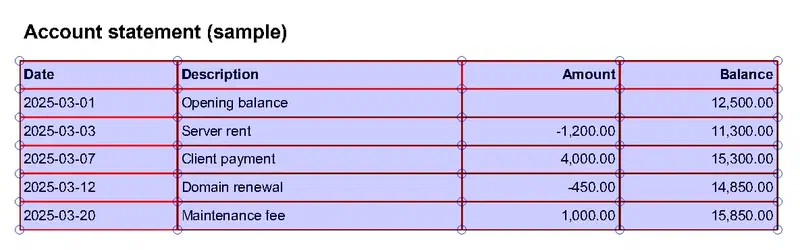
Finding the right settings is trial and error, and pdfplumber's visual debugger shortens that a lot:
im = page.to_image(resolution=150)
im.debug_tablefinder(settings)
im.save("debug.png")
Here is debug.png for a sample statement with a ruled table, using the default settings. Red lines are the detected edges, blue circles the intersections, and the light blue areas the table cells:
If you only need one region of the page, crop it first. The box is (x0, top, x1, bottom) in PDF points:
header_text = page.crop((0, 0, page.width, 120)).extract_text()Scanned documents: OCRmyPDF#
A scanned or photographed PDF has no text layer. You can run pytesseract on each page image, but for whole PDFs OCRmyPDF does far less work for you to maintain. It straightens pages, runs Tesseract, and adds a searchable text layer on top of the original image:
sudo apt install ocrmypdf tesseract-ocr-eng
ocrmypdf -l eng --deskew --rotate-pages scanned.pdf searchable.pdf
It also has a Python API:
import ocrmypdf

ocrmypdf.ocr("scanned.pdf", "searchable.pdf", language=["eng"], deskew=True)
The output is PDF/A by default, and from there you can read it with pdfplumber like any other PDF. Tesseract's accuracy depends heavily on image quality. On poor scans, converting to grayscale and thresholding first helps; that preprocessing is covered in the Pillow and OpenCV post.
Generating PDFs from HTML and CSS: WeasyPrint#
You can draw an invoice with ReportLab by calling canvas.drawString(100, 700, ...), but every design change turns into coordinate arithmetic. WeasyPrint takes HTML and CSS and renders a PDF. You fill the template with Jinja2 and control page layout with CSS @page rules.
from pathlib import Path

from jinja2 import Environment, FileSystemLoader, select_autoescape
from weasyprint import HTML

TEMPLATES = Path(__file__).parent / "templates"
env = Environment(loader=FileSystemLoader(TEMPLATES), autoescape=select_autoescape())

html = env.get_template("invoice.html").render(
    customer="Example Ltd.",
    items=[{"name": "Server", "amount": 4000}, {"name": "Support", "amount": 1000}],
)

HTML(string=html, base_url=str(TEMPLATES)).write_pdf("invoice.pdf")
Don't drop base_url. When you pass HTML as a string, WeasyPrint has no way to resolve relative paths like logo.png or style.css, and you get a PDF with no images and no styles.
Put the shared header, footer and page numbers in one base template and extend it:
<!-- templates/base.html -->
<!DOCTYPE html>
<html lang="en">
<head>
  <meta charset="utf-8">
  <link rel="stylesheet" href="style.css">
  <style>
    @page {
      size: A4;
      margin: 2cm;
      @bottom-center { content: "Page " counter(page) " of " counter(pages); }
    }
  </style>
</head>
<body>
  <header><img src="logo.png" alt="Company logo"></header>
  <main>{% block content %}{% endblock %}</main>
</body>
</html>
<!-- templates/invoice.html -->
{% extends "base.html" %}
{% block content %}
<h1>Invoice</h1>
<p>Customer: {{ customer }}</p>
<ul>
{% for item in items %}<li>{{ item.name }}: {{ item.amount }}</li>{% endfor %}
</ul>
{% endblock %}When the logo changes, you edit one file.
Long-term archiving: PDF/A#
For documents that have to be archived for years, you may need PDF/A. It requires fonts to be embedded and forbids references to external resources. WeasyPrint produces it with one parameter:
HTML(string=html, base_url=str(TEMPLATES)).write_pdf("archive.pdf", pdf_variant="pdf/a-3b")If compliance matters, run the output through a validator such as veraPDF. Passing the parameter doesn't guarantee every validator will accept the file.
Fonts and system libraries in Docker#
WeasyPrint works fine on your laptop and then breaks in a slim Docker image in two ways. The Pango libraries are missing, so the import fails. And without suitable fonts, non-ASCII characters render as empty boxes.
FROM python:3.13-slim

RUN apt-get update \
 && apt-get install -y --no-install-recommends \
      libpango-1.0-0 libpangoft2-1.0-0 libharfbuzz-subset0 fontconfig \
 && rm -rf /var/lib/apt/lists/*

# Ship the fonts you use with the project
COPY fonts/ /usr/share/fonts/truetype/app/
RUN fc-cache -f
Don't rely on system fonts. Keep the fonts you design with in the repo and copy them into the image. Other ways to keep Python images small are in the Docker post.
Digital signatures with pyHanko#
Pasting a picture of a signature into a PDF does not sign it. To prove a document hasn't been changed after signing you need a cryptographic (PAdES) signature, and in Python that means pyHanko:
import os

from pyhanko.pdf_utils.incremental_writer import IncrementalPdfFileWriter
from pyhanko.sign import signers

signer = signers.SimpleSigner.load_pkcs12(
    pfx_file="certificate.p12",
    passphrase=os.environ["P12_PASSPHRASE"].encode(),
)

with open("contract.pdf", "rb") as inf, open("contract-signed.pdf", "wb") as outf:
    writer = IncrementalPdfFileWriter(inf)
    signers.sign_pdf(
        writer,
        signers.PdfSignatureMetadata(field_name="Signature1"),
        signer=signer,
        output=outf,
    )
If the signature field doesn't exist, pyHanko creates an invisible one. Keep the certificate passphrase out of the code; read it from an environment variable or a secrets manager.
One caveat: the green "signature is valid" check in Adobe Reader depends on the certificate chaining to a trusted root. A document signed with a self-generated certificate is technically signed, but the reader can't verify who signed it. Signatures with legal weight usually require a qualified certificate from an accredited provider, and the rules differ by country.
Keep PDF generation out of the request#
Rendering a long report can take seconds of CPU. Do it inside the HTTP request and that worker can't serve anyone else in the meantime. The flow I use:
- The user asks for a report; the API enqueues a job and returns
202 Acceptedright away. - A background worker renders the PDF and uploads it to object storage.
- The user gets a time-limited download link.
For the queue side see the Celery and ARQ post; for storage, the MinIO post.
Where to start#
If you have a PDF to parse, open it with pdfplumber and look at page.to_image().debug_tablefinder() first. You'll understand the document's structure in a minute. For generation, start with one Jinja2 base template and WeasyPrint, and put the fonts into your Docker image on day one.
Docs: pypdf, pdfplumber, WeasyPrint, OCRmyPDF, pyHanko.


